PDF to PNG Converter: A 2026 Visual Guide for Content Creators
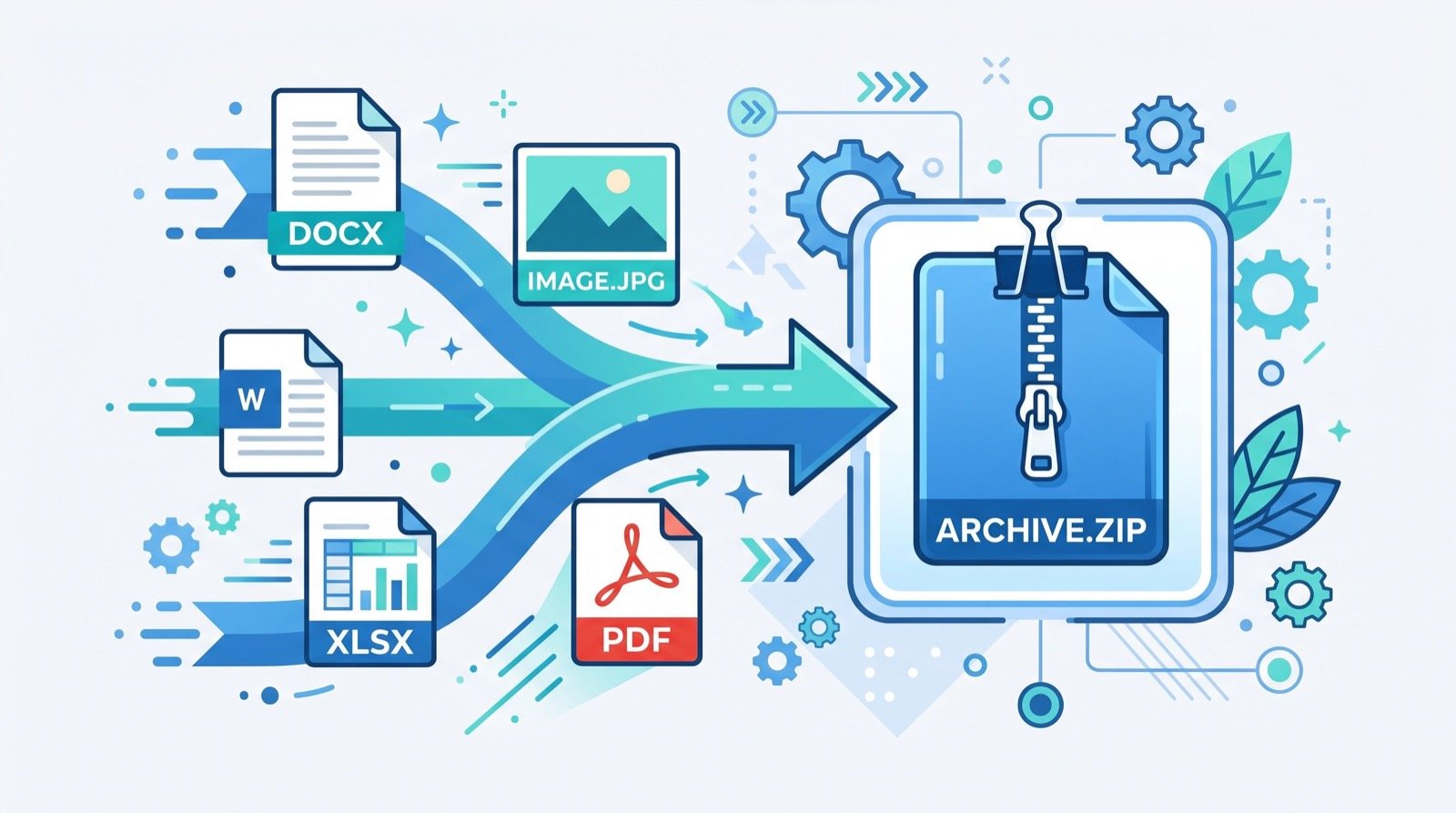
A PDF is perfect for sending a document, but hopeless when you need to drop a single page into a slide, a social post, or a website banner. That is where a PDF to PNG converter earns its place in your toolkit, turning a locked-down page into a crisp, transparent-ready image you can place anywhere. In 2026, as visual content dominates every channel, converting documents into usable graphics is an everyday task rather than a rare one.
This guide is written for creators, marketers, trainers, and small-business owners who live between documents and design. You will learn when raster images beat PDFs, how to keep quality high, and how a companion screen-recording tool rounds out your visual workflow.
Why Convert a PDF to PNG at All?
PDFs are containers built for printing and archiving. They preserve layout beautifully, but most image editors, social platforms, and page builders cannot embed a PDF page directly. PNG, by contrast, drops in anywhere and supports a transparent background, which is ideal for logos, diagrams, and overlays.
The PDF format is an open ISO standard, documented as ISO 32000-2, which is why it renders identically across devices. Converting a page to PNG simply extracts that pixel-perfect rendering into a format the rest of the web understands.
When should you choose PNG over JPG?
Choose PNG when the page contains text, sharp lines, or a transparent area, because PNG uses lossless compression and keeps edges clean. Choose JPG only for full-color photographs where a smaller file matters more than crisp text.
Format Comparison at a Glance
The table below clarifies which format fits which task, so you never ship a blurry heading again.
| Format | Compression | Transparency | Best For |
|---|---|---|---|
| Vector + raster | Yes | Documents, print | |
| PNG | Lossless | Yes | Text, logos, UI |
| JPG | Lossy | No | Photographs |
| WebP | Both modes | Yes | Optimized web |
A Quality-First Conversion Workflow
Sloppy conversion produces fuzzy images that undermine an otherwise polished post. Follow this sequence to keep every export sharp.
- Start from the highest-resolution PDF you have, not a compressed copy.
- Convert the specific page you need with a PDF to PNG converter.
- Export at a high enough resolution for retina and print use.
- Crop to the content so no dead white space surrounds the image.
- Rename the file with descriptive, keyword-relevant words for SEO.
Recording the Steps Your Readers Cannot See
Some processes are far easier to show than to describe. When a static image is not enough, a free screen recorder online lets you capture a short walkthrough directly in the browser, no bulky software required. Pair a recorded demo with your converted stills, and your tutorial suddenly feels complete.
Adobe, the company that created the format, notes in its official PDF overview that these files were designed to look the same everywhere, which is exactly why extracted images stay consistent across your recorded and static content.
Where creators use these two tools together
- How-to articles that mix annotated screenshots with a short clip.
- Product onboarding where a diagram plus a demo reduces support tickets.
- Social carousels built from clean PNG pages of a report.
- Listings and brochures that need both a still image and a video tour.
For a property, service, or moving business turning brochures into shareable visuals, it helps to hand production to dependable specialists who understand both the document side and the visual storytelling side of a campaign.
Getting Resolution Right the First Time
The single most common conversion mistake is exporting at screen resolution and then printing the result. What looked crisp on a monitor turns soft and pixelated on paper, because print needs far more detail per inch. Deciding the destination before you export saves a frustrating round of do-overs.
A practical rule helps here. For on-screen use, a PNG that matches the display width is plenty, and doubling it covers high-density retina screens. For print, aim much higher so the image holds up at physical size. When in doubt, export larger than you think you need, because scaling an image down keeps quality while scaling up destroys it.
File size is the trade-off. A high-resolution PNG can grow heavy, so once you have placed the image on the web, run it through an optimizer to shrink the bytes without visibly hurting the picture. Sharp and lightweight is the goal, and you rarely have to sacrifice one for the other.
How do you keep a library of converted images tidy?
Name files by content and version, not by a random export string, so future-you can find them. Group them in dated folders that mirror the campaign or article they belong to. A little discipline at conversion time turns a chaotic downloads folder into a searchable asset library.
Consistent naming also feeds SEO, since a descriptive filename gives search engines another honest clue about what the image shows.
Frequently Asked Questions
Does a PDF to PNG converter reduce image quality?
Not if you export at a high resolution. PNG uses lossless compression, so the only quality limit is the resolution you choose during conversion. Higher settings keep text and lines crisp.
Can I convert every page of a PDF at once?
Many converters support batch export, producing one PNG per page. If you need only a single graphic, convert just that page to keep your folder tidy.
Is a free screen recorder online good enough for tutorials?
Yes, for most walkthroughs. Browser-based recorders capture your screen and voice at solid quality, which is plenty for how-to clips, onboarding, and internal training.
Will a PNG have a transparent background automatically?
Only if the source page has transparency. A standard white document page converts to a white PNG; you would need to remove the background separately if transparency is required.
Conclusion
A PDF to PNG converter bridges the gap between formal documents and the visual web, letting you reuse any page as a sharp, flexible image. Combine it with a browser screen recorder, and you can explain almost anything with a blend of stills and motion. Add these two tools to your kit today and make your 2026 content clearer, faster, and more shareable.